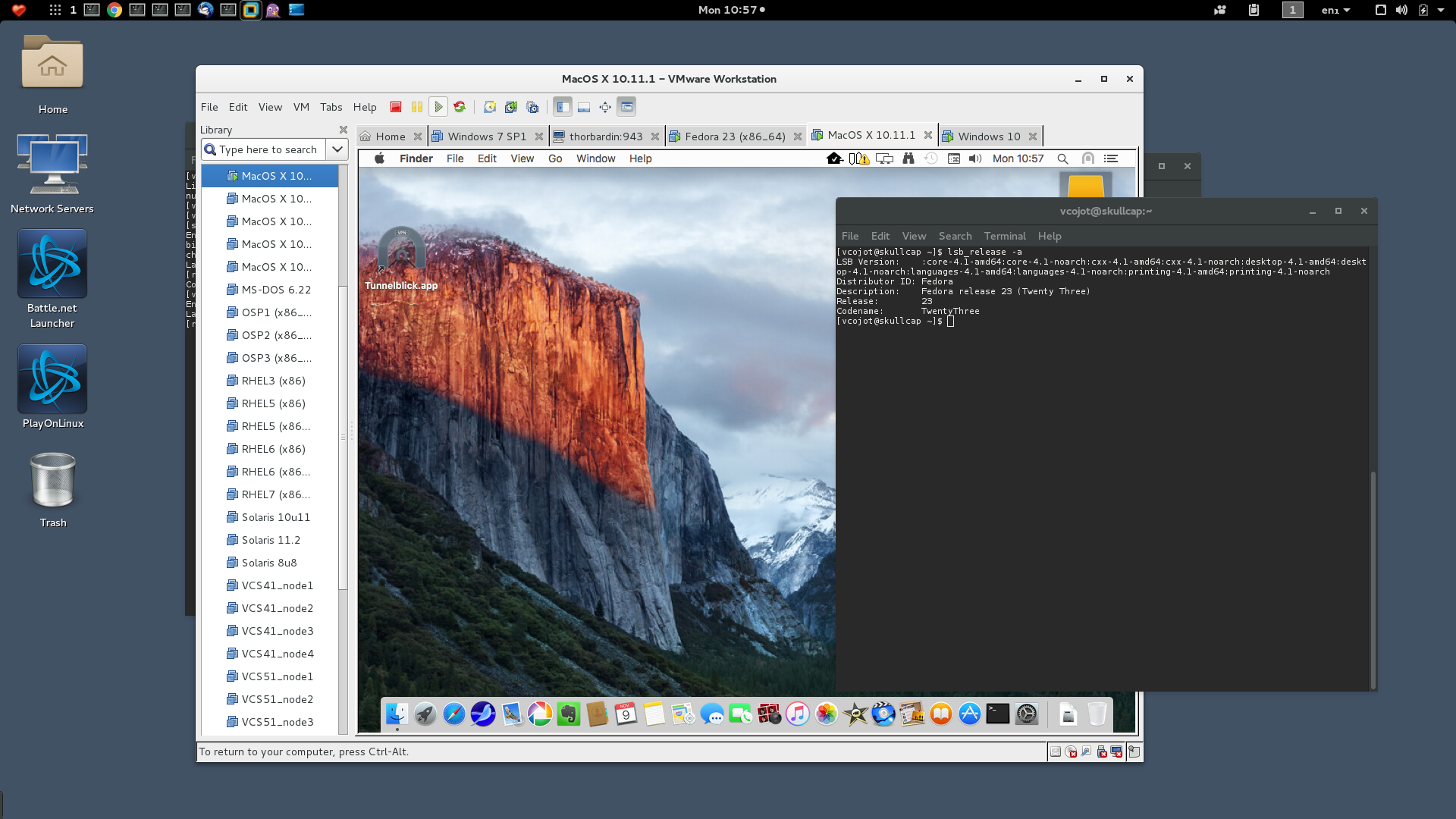
Update (20170321): VMware released VMW 12.5.4, which fixes all of the current issues with Fedora and the latest kernels (AFAIK). The hacks described on this page ARE NO LONGER NEEDED NOR MAINTAINED.
Update (20160921): VMware released VMW 12.5, which is supposed to work fine out of the box. I updated Update_VMW.sh to avoid patch anything -else- than VMW 11.x or 12.{0,1}. Please report back if you need assistance.
Update (20160630): I updated Update_VMW.sh to support Fedora Core 24 (fc24) for which the changes needed are the same. Please report back if you need assistance.
Update (20160525): I updated my Update_VMW.sh script to patch the VMware kernel modules so they work on kernel 4.4.x and above (FC23+). Tested successfully with VMW 12.1.1.
Update (20151209): This is still needed on 12.1.0 but I wrote a small tool to make everyone's life easier: Update_VMW.sh
VMWare workstation 12.0.1 Pro stopped working when I upgraded my FC22 desktop to FC23.
This is a chicken and egg issue with the bundled VMWare libs missing some symbols that used to be present in FC22. The relevant part of the logs when it fails to start is:
Unable to load image-loading module: /usr/lib/vmware/libconf/lib/gtk-2.0/2.10.0/loaders/svg_loader.so: /usr/lib64/librsvg-2.so.2: undefined symbol: g_type_class_adjust_private_offset
This symbol ('g_type_class_adjust_private_offset') is a glib symbol.
Unfortunately, the glib version provided by VMware in VMW12 doesn't provide this symbol if you use the VMware-provided libs (VMWARE_USE_SHIPPED_LIBS=yes).
Alas, if you don't use the VMWare libs you'll run into other issues.
I got things working by doing by replacing VMWare's bundled glib with that from FC23 and forcing VMW12 to use the VMware libs. Please note that these instructions work for VMW11 as well.
Become root:
$ sudo su -
Install required packages and force rebuild of VMWare modules:
# dnf install kernel-headers kernel-devel gcc glibc-headers
# vmware-modconfig --console --install-all
1) Get and run this script: Update_VMW.sh, then skip to 3)
$ sudo ./Update_VMW.sh
[sudo] password for user1:
(II) /usr/lib/vmware/lib/libvmwareui.so/libvmwareui.so present, continuing...
(II) /etc/vmware/bootstrap already has VMWARE_USE_SHIPPED_LIBS, skip..
(II) Replacing /usr/lib/vmware/lib/libgio-2.0.so.0/libgio-2.0.so.0 ...
'/usr/lib64/libgio-2.0.so.0' -> '/usr/lib/vmware/lib/libgio-2.0.so.0/libgio-2.0.so.0'
(II) Replacing /usr/lib/vmware/lib/libglib-2.0.so.0/libglib-2.0.so.0 ...
'/usr/lib64/libglib-2.0.so.0' -> '/usr/lib/vmware/lib/libglib-2.0.so.0/libglib-2.0.so.0'
(II) Replacing /usr/lib/vmware/lib/libgmodule-2.0.so.0/libgmodule-2.0.so.0 ...
'/usr/lib64/libgmodule-2.0.so.0' -> '/usr/lib/vmware/lib/libgmodule-2.0.so.0/libgmodule-2.0.so.0'
(II) Replacing /usr/lib/vmware/lib/libgobject-2.0.so.0/libgobject-2.0.so.0 ...
'/usr/lib64/libgobject-2.0.so.0' -> '/usr/lib/vmware/lib/libgobject-2.0.so.0/libgobject-2.0.so.0'
(II) Replacing /usr/lib/vmware/lib/libgthread-2.0.so.0/libgthread-2.0.so.0 ...
'/usr/lib64/libgthread-2.0.so.0' -> '/usr/lib/vmware/lib/libgthread-2.0.so.0/libgthread-2.0.so.0'
Or 2) Use the older/manual method:
First, find the version suffix of your GLIB library:
On FC23:
$ ls -l /usr/lib64/libglib-2.0.so.0.*
-rwxr-xr-x. 1 root root 1290352 Oct 19 16:52 /usr/lib64/libglib-2.0.so.0.4600.1
On FC23 + updates (20151125):
$ ls -l /usr/lib64/libglib-2.0.so.0.*
-rwxr-xr-x. 1 root root 1290352 Nov  9 06:36 /usr/lib64/libglib-2.0.so.0.4600.2
Next, replace the vmware glib version with the fedora version found above:
# cd /usr/lib/vmware/lib
# for mylib in $(ls /usr/lib64/lib*4600*); do /bin/cp -afv $mylib $(basename $mylib .4600.2)/$(basename $mylib .4600.2); done
This expands to the following:
# cd /usr/lib/vmware/lib
# /bin/cp -afv /usr/lib64/libgio-2.0.so.0.4600.2 libgio-2.0.so.0/libgio-2.0.so.0
# /bin/cp -afv /usr/lib64/libglib-2.0.so.0.4600.2 libglib-2.0.so.0/libglib-2.0.so.0
# /bin/cp -afv /usr/lib64/libgmodule-2.0.so.0.4600.2 libgmodule-2.0.so.0/libgmodule-2.0.so.0
# /bin/cp -afv /usr/lib64/libgobject-2.0.so.0.4600.2 libgobject-2.0.so.0/libgobject-2.0.so.0
# /bin/cp -afv /usr/lib64/libgthread-2.0.so.0.4600.2 libgthread-2.0.so.0/libgthread-2.0.so.0
Start VMware or VMplayer:
$ VMWARE_USE_SHIPPED_LIBS=force vmware
or:
$ VMWARE_USE_SHIPPED_LIBS=force vmplayer
For ease of use/convenience, you might also want to do this:
# cd /usr/bin/
# mv -iv vmplayer vmplayer.bin
# mv -iv vmware vmware.bin
Then create two scripts replacing the previous scripts/tools:
$ cat /usr/bin/vmplayer
#!/bin/bash
export VMWARE_USE_SHIPPED_LIBS=force
/usr/bin/vmplayer.bin $*

$ cat /usr/bin/vmware
#!/bin/bash
export VMWARE_USE_SHIPPED_LIBS=force
/usr/bin/vmware.bin $*
# chmod 755 /usr/bin/vmware /usr/bin/vmplayer
Next, edit /usr/bin/vmware-netcfg and add the env workaround toward the top:
$ cat /usr/bin/vmware-netcfg
#!/usr/bin/env bash
[....]
ROOT_REQUIRED=yes
export VMWARE_USE_SHIPPED_LIBS=force
[....]
3) Enjoy!
Please note that should the kernel get an update (think 4.2.5-300.fc23) then VMW12 will prompt to rebuild the kernel modules. This won't work (or so it seems) and you may have to run the kernel build manually again:
# vmware-modconfig --console --install-all
- The above instructions work for VMWare Workstation 11.x as well (reported by Jeroen De Meerleer, many thanks for that)
![[Contents]](iconsd/cntsicon.gif)
![[Map]](iconsd/mapicon.gif)
![[Index]](iconsd/indxicon.gif)
![[Comment]](iconsd/cmnticon.gif)
![[Search]](iconsd/srchicon.gif)
![[Home]](iconsd/homeicon.gif)
![[Up]](iconsd/upicon.gif)
![[Previous]](iconsd/previcox.gif)
![[Next]](iconsd/nexticox.gif)